evr Clips and Metadata — User Guide
A Premiere Pro plugin that works with evrExpanse · plugin 1.2.2
What it does
evr Clips and Metadata is a Premiere Pro plugin: it adds a panel to Premiere Pro.
evrExpanse can export a small file next to your clips, with everything it knows about them: camera, lens, settings, dates and more. The panel reads that file in Premiere Pro and does three things:
- imports the clips that aren't in your project yet;
- writes the metadata into columns of the Project panel, all starting with
evr; - verifies every value by reading it back from the project.
Then you can see the metadata next to your clips, and search it.
Before you start
- macOS and Premiere Pro 25.6 or later.
- The Creative Cloud app, installed and signed in: Premiere Pro plugins are installed through it.
- The file to open: an export of evrExpanse 7.3 or later. In evrExpanse, turn on the Premiere Pro · JSON export format. After an offload you'll find the file in the metadata folder, next to the other exports. Its name ends in
_PremierePro.json. On a Mac where you only edit, you don't need evrExpanse: the exported file is enough.
Install the plugin
There are two ways to install the plugin. Either way, the Creative Cloud app installs it, updates it and lets you remove it.
- From evrExpanse, on the Mac where you offload. evrExpanse carries the plugin and installs it for you, without going online: useful where network or Marketplace access is managed by your company.
- From the Adobe Marketplace, in Creative Cloud › Stock & Marketplace › Plugins: search for evr Clips and Metadata. Useful on a Mac where you only edit.
From evrExpanse. You'll find everything about the plugin in evrExpanse › Preferences… (⌘,) › Metadata Export › Premiere Pro Plugin.
- The first time, evrExpanse offers the plugin once: when you turn on the Premiere Pro · JSON export format, or when you start evrExpanse 7.3 with that export already on. Click Install. If you click Later, use Install the Premiere Pro plugin in Preferences whenever you want.
- Creative Cloud then asks you to confirm twice: once for a plugin that doesn't come from the Marketplace, once for a plugin by a third-party developer.
- Before handing the plugin to Creative Cloud, evrExpanse may show Before You Continue: when Premiere Pro is set to write an XMP ID into the files it imports (see Your camera files), and, for an update, when Premiere Pro is open.
- If the section says that the plugin needs a newer Premiere Pro, or the Creative Cloud app, evrExpanse doesn't offer the plugin until that's fixed.
Updates. When a new version of the plugin comes with evrExpanse, evrExpanse offers it when it starts: click Update, and Creative Cloud asks you to confirm the replacement. You can update with Premiere Pro open: the panel reloads with the new version. Don't update while the panel is importing or writing, because reloading stops it. Later asks again at the next start; after three times for the same version evrExpanse stops asking, and Update to … stays in Preferences. When evrExpanse itself has an update, it offers that first: the new plugin comes with the new evrExpanse.
If you disabled the plugin in Creative Cloud, evrExpanse doesn't offer updates: Preferences shows the new version. To update, turn the plugin on again in Manage plugins (see below).
If you installed the plugin from the Marketplace first, evrExpanse sees it and doesn't offer its own copy: Preferences shows that the plugin comes from the Marketplace. Updates then come from the Marketplace, through Creative Cloud.
On a Mac without evrExpanse, for example the one you edit on, you can install the plugin from the Marketplace, or bring it from evrExpanse: in the same section of evrExpanse's Preferences, Save Installer… saves a copy of the plugin installer (.ccx). Take it to the other Mac and double-click it: Creative Cloud installs the plugin and asks you to confirm, as above.
If Creative Cloud says error -2, it can't read the file. Give the Creative Cloud app Full Disk Access, in System Settings › Privacy & Security › Full Disk Access, then double-click the file again. If you can't change that setting, move the file to the Shared folder (/Users/Shared) and double-click it from there.
Manage the plugin. To remove or disable it, use Creative Cloud: Stock & Marketplace → Plugins → Manage plugins. If the plugin was installed both ways, from evrExpanse and from the Marketplace, Settings says that two copies are installed. Remove one in Manage plugins: otherwise Premiere Pro shows two panels with the same name.
How to use it
- Open your project in Premiere Pro, then open the panel from Window → UXP Plugins → evr Clips and Metadata. The first screen shows which apps the panel works with: today evrExpanse, and its Premiere Pro · JSON export.
- In the Project panel, select the bin where new clips should go. If nothing is selected, they go to the top of the project, shown as Project root. If you change your mind later, select another bin and click Use selected bin.
- Click Choose Premiere Pro · JSON export… and pick the file.
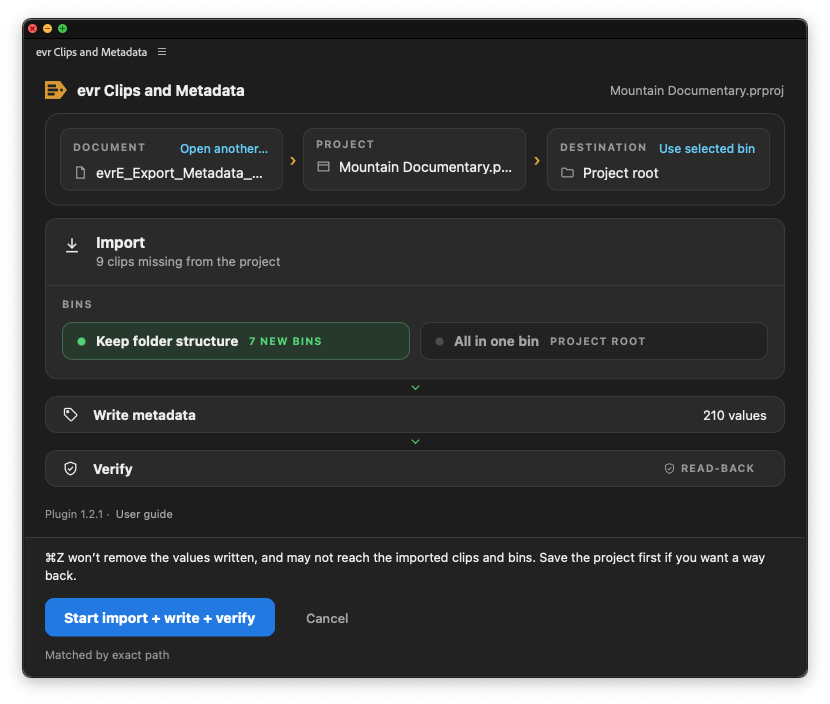
- The panel shows what it's going to do: how many clips are missing, how many values it will write, and that it will verify them. If your clips come from different folders, choose how to bring them in: Keep folder structure (a bin for each folder) or All in one bin. If some clips are already in the project and others are missing, and some of their values need writing, you can also Skip import and write only the clips that are already there.
- Save your project, then click Start import + write + verify (or Start write + verify, when all the clips are already in the project).
- Wait until the panel says it's done. Premiere may stop responding for a while: that's normal (see below).
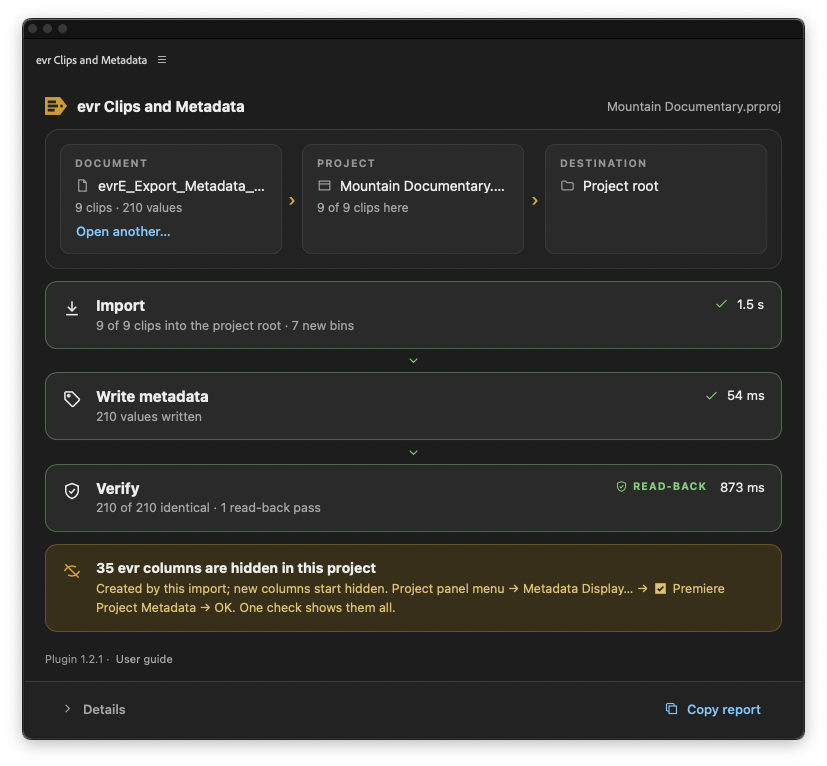
- When everything is done, the three steps turn green. If the panel tells you that some
evrcolumns are hidden, turn them on as it shows. One check does it.
You can run the same file again at any time. If everything is already in the project, the panel says Already up to date and changes nothing.
At the bottom of the panel, User guide opens this page. On the first screen, evrExpanse opens the evrExpanse page.
Your camera files
The panel doesn't modify your camera files. The metadata is written into the Premiere Pro project only, in the evr columns. We tested this with Premiere Pro 26.3, with its clip and XMP metadata linking turned on: the evr columns have no link to the file, and the files stayed byte-for-byte identical.
Importing is done by Premiere Pro. If Write XMP ID to files on import is on (Premiere Pro › Settings › Media; it is off by default), Premiere writes an XMP block into each file it imports, or into an .xmp file next to it for MXF, as it does with any import. If your files are checksummed, for example with ASC MHL, keep that setting off.
Why does it…?
Why is there only one Import button?
On most cameras that record to a DCIM folder, such as Lumix, Canon and similar, all your clips end up in the same folder, for example DCIM/100PANA_. In that case there is no folder structure to rebuild: keeping the structure or putting everything in one bin would give exactly the same result. So the panel doesn't ask you to choose between two identical options, and shows a single button.
When your clips come from different folders (for example two cameras, or a card with both 100PANA_ and 101PANA_), you get the choice, and the panel tells you how many bins it will create.
Why should I save before starting?
Because ⌘Z won't take the values back. Writing the metadata fills Premiere's History with many Set Property steps. Undoing them doesn't remove the values, and they push older steps out of the History, including the import and whatever you did before starting the panel. Saving first is the only reliable way back: if you don't like the result, revert to the saved project.
Why does Premiere stop responding?
While the values are written and verified, Premiere is busy and doesn't redraw the panel, not even the clock. With a thousand clips it can take about a minute. The panel tells you before it happens, with Premiere may not respond until it's done. Just wait: it isn't stuck.
There's no time estimate on purpose. The same clips can take twice as long on one day as on another, depending on what Premiere is doing.
Why does Premiere show its own "Import Files" window?
That's Premiere importing the clips. It shows its own progress window, even when the import is started by a panel.
Why can't I see the evr columns?
New columns start hidden in Premiere, in every project. The values are written anyway, and search already finds them. To see them: Project panel menu → Metadata Display… → check Premiere Project Metadata → OK. One check turns on all the evr columns.
When a future version of evrExpanse adds a column, it will appear hidden too. The panel tells you when that happens.
Why does the Project panel search find clips by camera or lens?
Premiere's search looks inside the evr columns too, even hidden ones. Type a lens, a camera model or a setting, and the Project panel shows only the clips that match. It's one of the most useful things the panel gives you.
Why was a clip imported twice?
The panel recognises a clip by its exact path on disk. If the same clip is already in your project but from another place, for example a copy on another drive, it's a different file for the panel, and it gets imported again.
Why weren't my existing clips moved into the new bins?
The panel never moves clips that are already in your project: where you put them is your choice. It only places the clips it imports. That's why, with Keep folder structure, a bin tree can look half-full: the other clips are still where you left them.
Why did it use a bin I already had?
If a bin with exactly the same name already exists where the new one would go, the panel uses it instead of creating a duplicate.
Why did it change a value I had edited?
The evr columns hold what evrExpanse exported. If you edit one of those values in Premiere, the next run puts the exported value back. The panel tells you before starting, with the number of values it will reset.
For your own notes, use Premiere's own columns, not the evr ones.
Why were some files left out?
Premiere refused them. The panel tries once more, this time letting Premiere show its own message, which tells you why. Nothing is written for those files, and it isn't an error in the panel: often the format isn't supported by Premiere. The panel lists the file types, and a link under them shows the full list of files.
Why were some clips skipped?
The panel doesn't write metadata into offline media, sequences, multicam clips or merged clips. They're listed in the report.
Why are there evr columns in a project where I never used the panel?
The evr columns are saved inside the projects that use them. When one of those projects is open, Premiere makes its columns available to every project open in the same session, hidden. It's harmless: they're empty there.
Why do the columns stay after I click Cancel?
When some of your clips are already in the project, the panel prepares the columns before asking you to confirm. Cancel stops everything else, but the columns stay, empty. You can leave them: they're hidden and don't get in the way. To remove one, use Metadata Display in the Metadata panel, then save the project and restart Premiere.
Why does a column keep its old name?
Premiere fixes a column's name the first time it enters a project. If a later version of evrExpanse renames it, projects that already had it keep the old name.
Why does the panel open small, in the corner?
Premiere opens floating panels at their smallest size and doesn't remember size or position. Resize it, or dock it next to the Project panel.
Why does Premiere ask for permission when I click a link?
Premiere asks every time a panel wants to open your web browser: it's a safety check of Premiere, not of the panel. Click Allow. Check Remember my choice if you don't want to be asked again: the choice covers both links, User guide and evrExpanse, and it stays after the plugin is updated. If you click Block, the panel shows the address instead, so you can open it yourself.
Why doesn't the Space bar press the button?
Premiere keeps the Space bar for itself. Use Return instead. Tab moves between buttons, and the arrow keys change the bin choice.
Messages that ask you to do something
This document needs a newer plugin. The file was made by a newer version of evrExpanse. Update the plugin: from evrExpanse, in Preferences; from Creative Cloud › Manage plugins, if you installed it from the Marketplace; or with Save Installer… for a Mac without evrExpanse. Then open the file again.
This document can't be read. The file isn't an evrExpanse export for Premiere Pro, or it's damaged. Check that you picked the file ending in _PremierePro.json.
Values not verified. The values were written, but Premiere was still busy when the check ran out of time. It isn't a failure. Open the same file again in a moment: if the panel says Already up to date, every value is in the project.
evr columns are hidden, and values are not in the project. Turn the columns on as the panel shows, then run the same file again. Please also send the report to support@evrapp.cloud: today Premiere Pro writes into hidden columns, so this tells us something changed in Premiere.
The write failed. Premiere reported an error while writing. Run the same file again: the panel compares with the project and writes only what is missing or different.
Values came back different, or values are not in the project on columns you can see. This shouldn't happen. Click Copy report and send it to support@evrapp.cloud. One known cause: a column with the same name as an evr column was created before, with a different type (for example a number). Premiere then stores something else instead of the text, and every run reports it again.
Getting help
Every run has a report. Click Details to read it, or Copy report to copy it and paste it into an email to support@evrapp.cloud. The report begins with the version of the plugin you're using, so we know what you have.
The report includes the full paths of your files, the names of the document, the project and the clips, and the values. Check it before sending it if they're private.
Known limits
- macOS only. Windows isn't supported yet.
- Clips are recognised by their exact path. If the drive has a different name on the Mac where you edit, or the clips were copied elsewhere, the panel doesn't recognise the clips already in the project and imports them again.
- Tested with cards that keep clips as plain files, such as Canon XF and cameras using DCIM. Cards that Premiere opens as a whole (P2, XAVC with an
M4ROOTfolder, AVCHD) haven't been tested yet. - One import per run: if some clips are left out, run the same file again later and the panel offers them again.
- Tested with Premiere Pro 25.6 on macOS 13 and with Premiere Pro 26.3 on macOS 15.
Privacy
evr Clips and Metadata does not collect, store or send any personal data. It makes no network requests: it only reads the file you choose and writes to your Premiere Pro project. The User guide and evrExpanse links open pages of evrapp.cloud in your web browser, after Premiere asks your permission.